
You design a great promotional image for your Google Business Profile, publish the post, and then notice the headline is cut off and the logo has vanished. It is one of the most common frustrations for local businesses, and it makes polished marketing look careless. The good news is that cropping follows predictable patterns, so it can be avoided with a little planning. This blog covers why Google crops post images, which sizes and formats work best, and how to design visuals that stay clear and complete wherever customers see them.
Key Takeaways
- Google shows post images in different frames across Search, Maps, and mobile.
- A 4:3 landscape image is the most reliable starting point for posts.
- Keeping text and logos inside a central safe zone prevents awkward cropping.
- High-resolution JPG or PNG files under 5 MB help preserve quality.
- Preview every post on desktop and mobile after publishing.
Why Google Business Profile Post Images Get Cropped
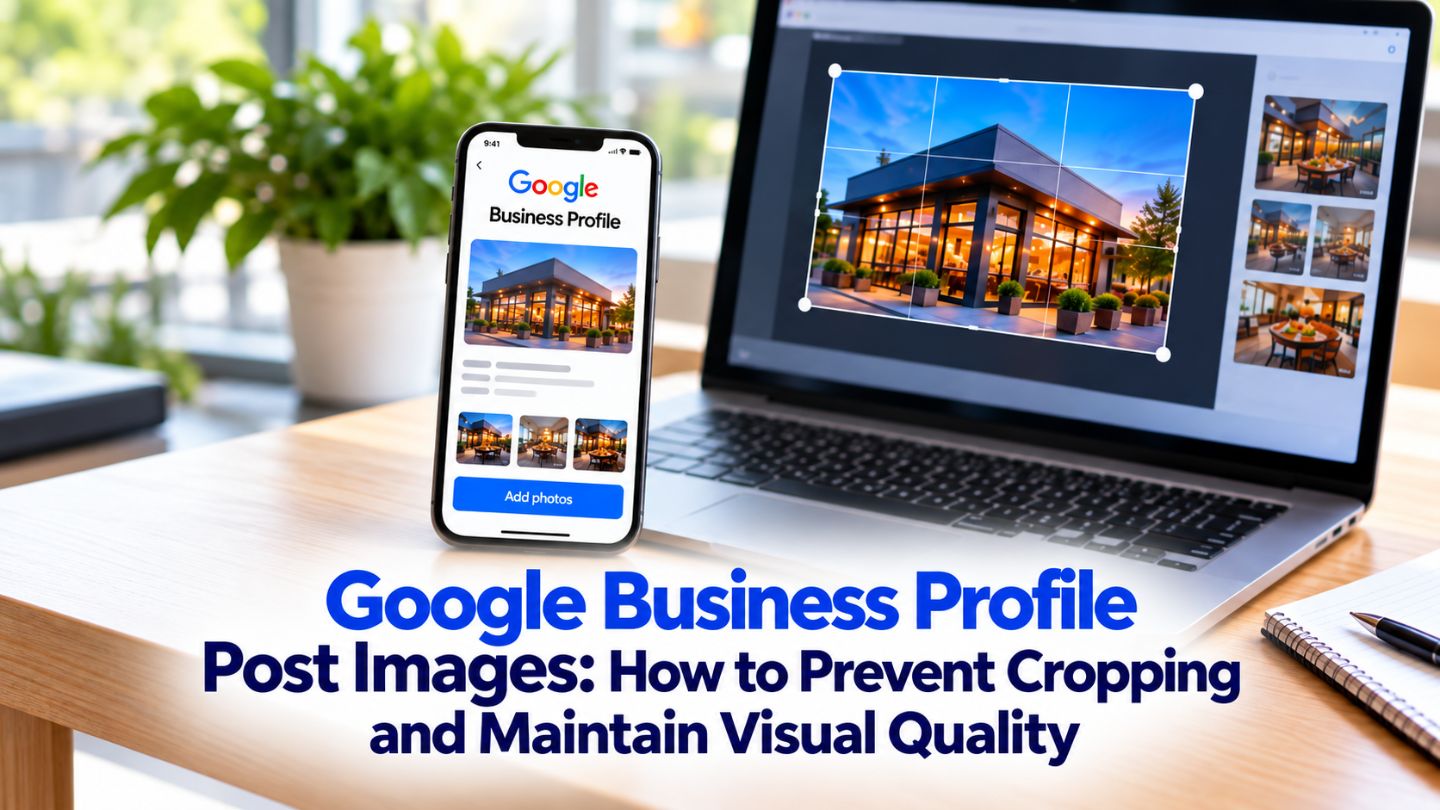
Google does not display your post image in one fixed shape. The same post can appear in the business panel on Google Search, inside Google Maps, on a small phone screen, and in the Updates section of your profile. Each of these placements uses its own frame, and Google automatically fits your image into that frame, trimming the edges whenever the proportions of your image do not match the space available.
That is why an image that looks perfect on one screen can lose its edges on another. Wide banners lose their sides, tall images lose their top and bottom, and anything placed close to the border is at risk. Google does not offer manual crop controls for each placement, so the only dependable fix is designing images that survive automatic cropping in the first place, no matter where they end up. The same framing discipline sits behind thumbnail design strategy and what drives clicks on content.
The Image Sizes and Formats That Work Best
Google's photo guidelines for Business Profiles call for JPG or PNG files between 10 KB and 5 MB, with a recommended resolution of 720 by 720 pixels and a minimum of 250 by 250 pixels. Those are baseline requirements, but most businesses get better results by uploading images well above the minimum, because higher resolution holds up far better when Google resizes the file for different screens.
For posts specifically, a 4:3 landscape ratio such as 1200 by 900 pixels is the most dependable choice. It closely matches the frame Google uses most often for post previews, which means less trimming across placements. Avoid extreme panoramic or tall vertical images, since those lose the most content. Keeping files comfortably within the size limit preserves detail while still uploading quickly from any device.
Quick Specs for Post Images
- Format: JPG or PNG.
- File size: between 10 KB and 5 MB.
- Practical post size: 1200 x 900 pixels (4:3 ratio).
- Avoid heavy filters, busy collages, and crowded text overlays.
Read More: Tips for Designing Social Media Graphics to Increase Engagement
Designing Around the Safe Zone
The safe zone is the central area of an image that stays visible no matter how Google crops it. As a practical rule, keep headlines, logos, prices, and faces within the middle 70 to 80 percent of the frame, leaving a comfortable margin on every side. The edges should hold only background elements the design can afford to lose, such as texture, solid color, or scenery that adds atmosphere without carrying any of the message.
Simple layouts work best. One focal point, a short line of text, and plenty of breathing room survive cropping far better than busy designs packed with details. Since the post description already carries most of your message, the image does not need to explain everything. Strong Google Business Profile posts pair a clean visual that grabs attention with text that explains the offer.
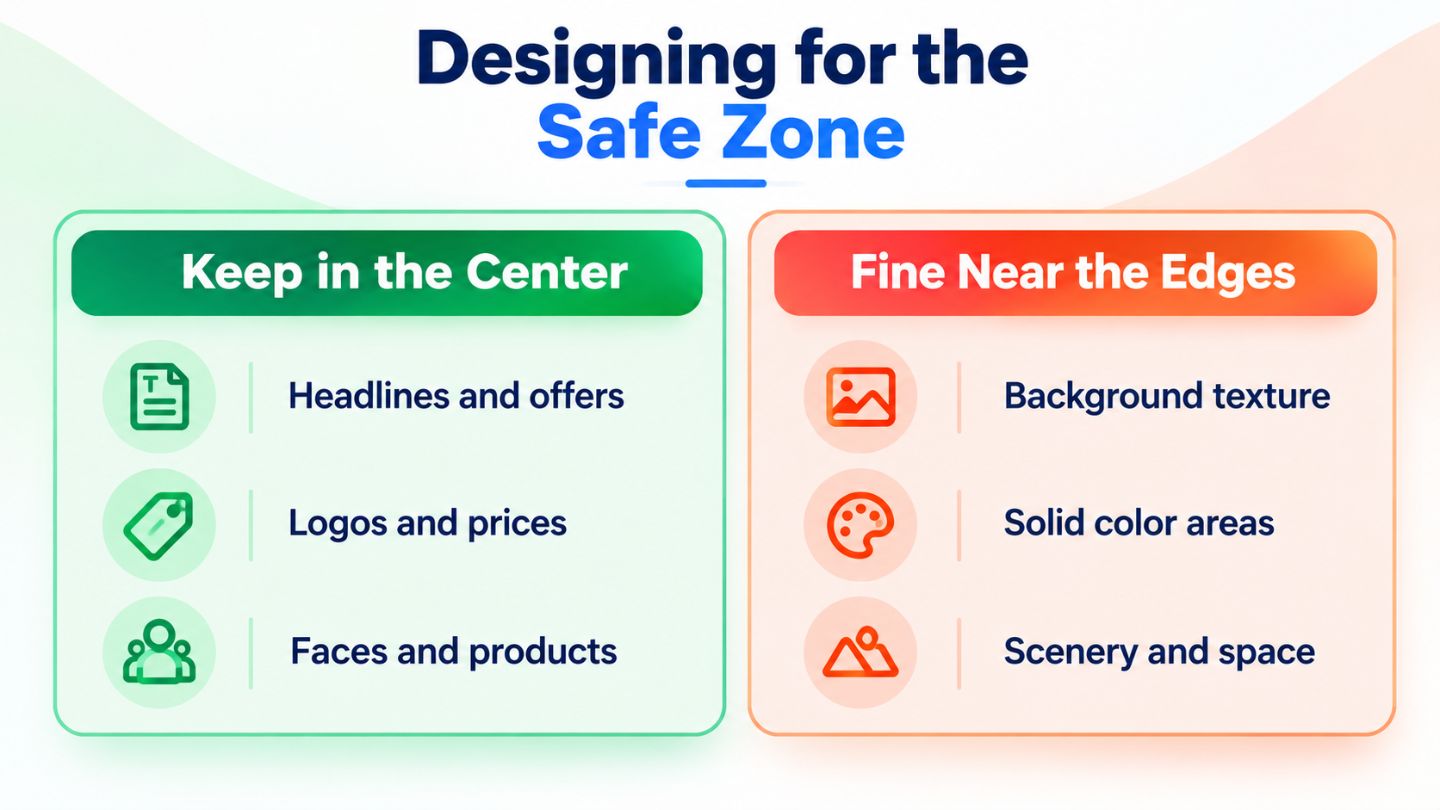
Placing key details in the center of the image protects them from automatic cropping.
Protecting Visual Quality During Upload
Cropping is not the only thing that can go wrong. Images can also lose sharpness through compression, especially when they start out small or have already been compressed several times. Screenshots, images saved from social platforms, and photos sent through messaging apps often look soft or pixelated once Google processes them. Starting with the original, full-quality file makes a noticeable difference in how professional the post looks.
Export images at their final size rather than relying on Google to shrink a huge file or stretch a tiny one. Use moderate compression that keeps edges crisp, and avoid text so small it becomes unreadable on a phone. Image metadata is another common question, but whether geo-tagging images helps Google Business Profile rankings matters far less to customers than clarity and relevance.
Choosing Images That Fit Each Post Type
Google Business Profile offers several post types, including updates, offers, and events, and each one benefits from a slightly different visual approach. Offer posts work well with a clear product or service photo and a short, readable discount line placed safely in the center. Event posts benefit from images that show the venue, the activity, or the people involved, so customers can picture themselves attending. Updates can use behind-the-scenes photos, team images, or seasonal visuals that make the business feel active and approachable.
Real photos usually outperform heavily designed graphics on a local profile. Customers want to see the actual storefront, the team, and the work being done, because those images build trust before they ever call or visit. Stock photos and text-heavy flyers can feel impersonal, and they are also more likely to look cluttered once Google crops and resizes them for smaller screens.
Read More: Image vs Illustration: Which Performs Better in Marketing?
Keeping Image Quality Consistent Over Time
A single great post does not do much if the rest of the profile looks neglected or inconsistent. Posting fresh images on a regular schedule keeps the profile active and gives customers a reason to look closer each time they find the business. A simple monthly plan covering seasonal promotions, new services, completed projects, and team updates makes it easier to keep posts coming without last-minute scrambling for something to share.
Consistency in style matters too. Using similar lighting, color tones, and framing across posts makes the profile look professional and helps customers recognize the brand at a glance. Saving a short checklist with your preferred dimensions, safe zone guides, and export settings ensures every new image meets the same standard, no matter who on the team creates or uploads it. Holding that standard over time is what makes consistent brand design improve customer recognition.
Testing Posts Before Customers Notice Problems
Every post deserves a quick check after it goes live. Open your profile in Google Search on a desktop browser, then on a phone, and then in the Google Maps app. Look at how the image appears in each placement and confirm the key message is still fully visible. If something important has been cut off, update the post with a revised image rather than leaving a flawed version in front of customers.
Over time, building a few reusable templates with the safe zone already marked saves a lot of trial and error. Templates keep branding consistent and make it easy for anyone on the team to create graphics that display correctly. The principles behind visual search and how to optimize images for better rankings, such as clear subjects, descriptive file names, and quality originals, also support stronger post images.
Keeping Your Profile Images Sharp and Complete
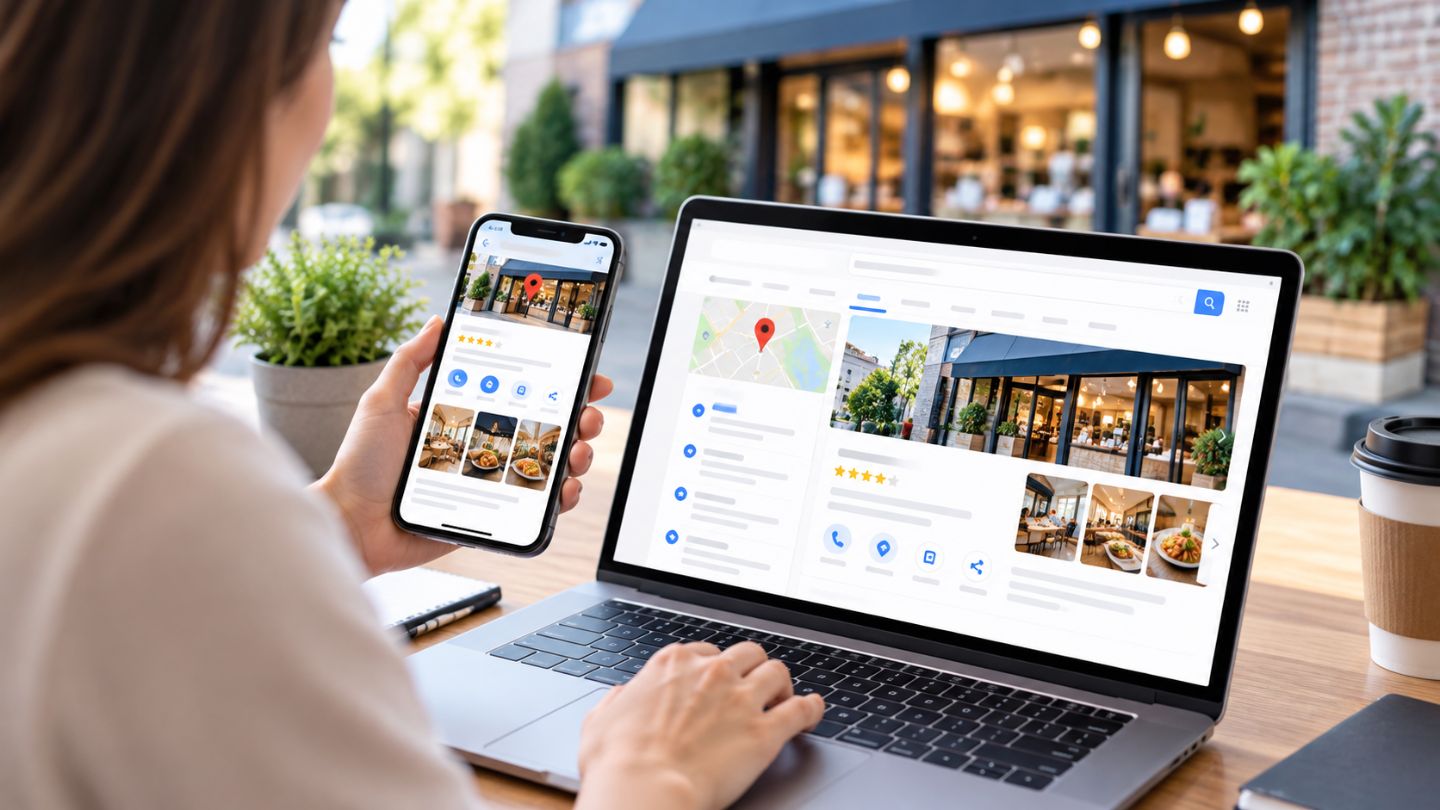
Google Business Profile post images get cropped because Google fits them into different frames across Search, Maps, and mobile screens. Using a 4:3 landscape size, keeping important details in the central safe zone, starting with high-quality originals, and previewing each post across devices prevents most of these problems. A few small adjustments at the design stage protect the professional look that local customers expect to see.
At The Ocean Marketing, we help local businesses keep their profiles polished, active, and easy for nearby customers to find. Our Google Maps SEO team manages posts, photos, and profile details that support local visibility, and a free SEO audit can reveal gaps in your current online presence. Contact us to keep your profile looking its best every time customers find you.
Frequently Asked Questions
What is the best image size for Google Business Profile posts?
A 4:3 landscape image, such as 1200 by 900 pixels, works reliably across most post placements. Save it as a JPG or PNG between 10 KB and 5 MB.
Why does my post image look blurry?
Blurriness usually comes from low-resolution source files or images that were compressed several times before upload. Using the original, high-resolution file and exporting it at the final size helps keep it sharp.
Can I control how Google crops my post image?
Google does not provide manual cropping controls for each placement. The best approach is keeping text, logos, and key details near the center so they stay visible however the image is framed.